
Getting Started with DMGKit: Notarization & Signing Setup
This process ensures your app:
- Opens without “unidentified developer” warnings;
- Is trusted by Gatekeeper;
- Can be safely distributed to users.
If you haven’t configured your installer layout yet, also check:
What is Code Signing & Notarization on macOS?
Apple requires all distributed apps to be:
- Code signed → verifies the developer identity;
- Notarized → scanned by Apple for security risks.
Without these:
- Trust score drops significantly (DMGKit Inspector);
- Users see security warnings;
- macOS may block your app entirely.
Step 1 – Create an Apple Developer Account
To sign and notarize apps, you need:
- Apple Developer membership ($99/year)
To create one, visit: https://developer.apple.com
Step 2 – Create Certificates
You’ll need two certificates:
- Developer ID Application – Used to sign the app itself;
- Developer ID Installer – Used to sign DMGs and PKGs.
How to create:
- Open Keychain Access;
- Go to Certificate Assistant → Request a Certificate;
- Upload to Apple Developer portal;
- Download and install both certificates.
Step 3 – Create Notarization Keychain Profile
DMGKit uses Apple’s notarytool, which requires stored credentials.
Run in Terminal:
xcrun notarytool store-credentials "DMGKit_Notary" \
--apple-id "your@email.com" \
--team-id "TEAMID123" \
--password "app-specific-password"
Please input your own credentials. Replace your Apple and Team ID, and password. You may leave the store credentials as is, or replace them to something else entirely.
Important:
- Use App-Specific Password (not Apple ID password);
- Create one here: https://appleid.apple.com.
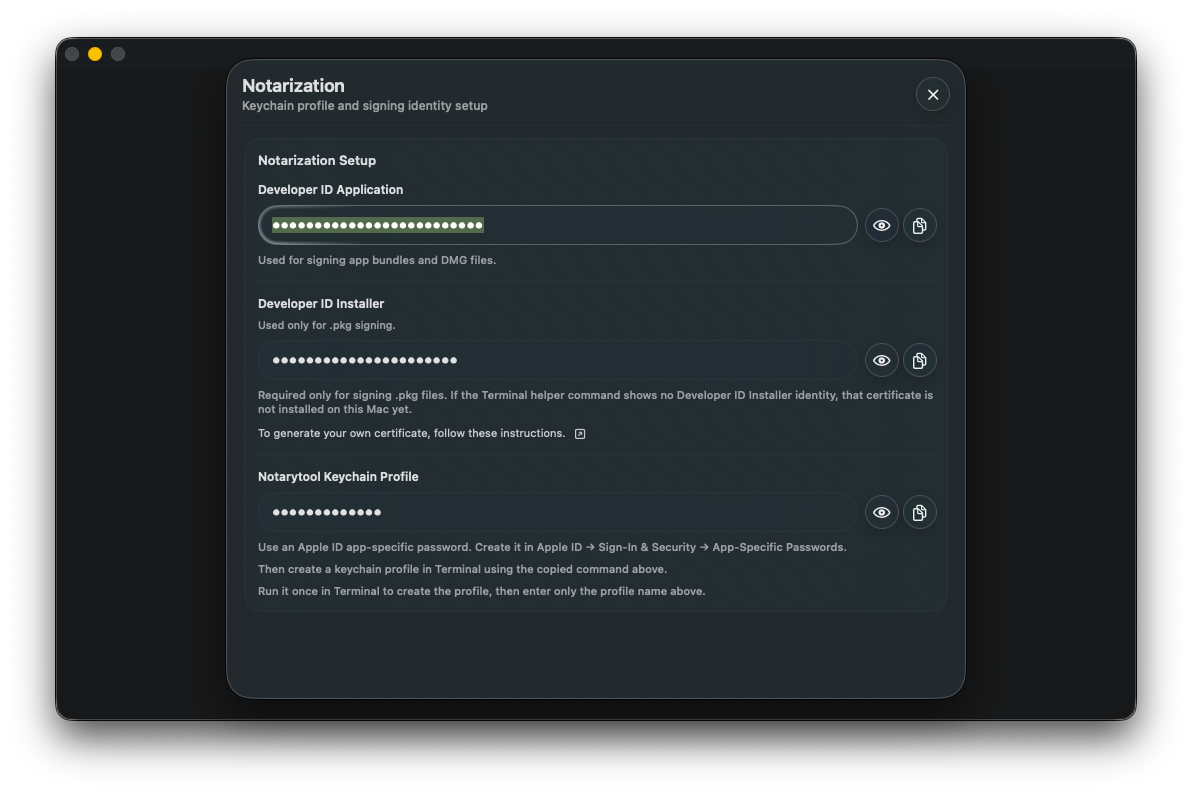
Step 4 – Configure Notarization in DMGKit
Go to: Settings → Notarization → Manage
Fill in:
- Developer ID Application;
- Developer ID Installer;
- Keychain Profile → DMGKit_Notary (or your custom name).
What DMGKit Does Automatically
Once configured, DMGKit handles everything for you during export:
- Signs your application;
- Signs the DMG installer;
- Submits to Apple for notarization;
- Staples notarization proof to the file.
Why This Matters
After setup:
- Your installers open without warnings;
- Users trust your software instantly;
- Distribution becomes seamless.
And the best part:
You only set this up once. DMGKit handles everything automatically afterward.
Best Practices
- Always verify your certificates are valid;
- Keep your Apple Developer account active;
- Test your installer after notarization.
While you are here, this articles could also be incredibly helpful:
- How to Design a Custom Installer;
- How to Configure Installer Resolution;
- How to Add Legal Agreements (SLA Injection).